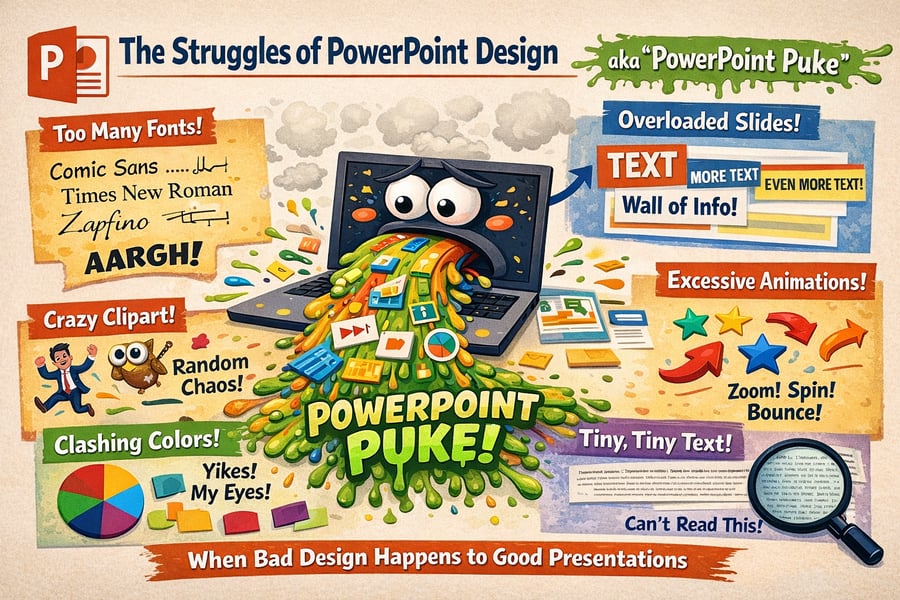
I’ll just say it: I’ve seen more PowerPoint Puke than I care to count. And I mean that in every market, every industry, every format. Government entities. Teachers. Pharmaceutical companies—you are known for it. Even I, Becky Pike Pluth, am a recovering PowerPoint Puke expert.
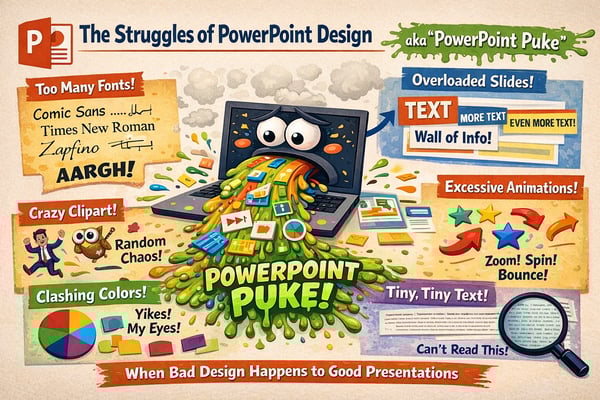
So what exactly is PowerPoint Puke? It’s what happens when a slide becomes a document. Title. Bullet. Bullet. Bullet. Logo in the corner. Six-point font crammed into every inch of white space. It’s the slide that makes your learners’ eyes glaze over before you’ve even opened your mouth.
Here at The Bob Pike Group, we’ve spent nearly 50 years helping trainers transform passive, disengaging learning experiences into ones that participants genuinely enjoy—and actually remember. And one of the fastest places to start? Your slides. If you can design your PowerPoints to communicate messages faster, you’ll keep your learners with you instead of sending them somewhere else in their heads.
Here are the tips that will make you look amazing the next time you step into the classroom—or the virtual room.
Here’s the mindset shift that changes everything: your slide is not a handout. It is not a workbook. It is not a place to put everything you know about the topic.
It’s a billboard.
You have about three seconds to convey your message before a driver—or a learner—moves on. So ask yourself the same thing a great billboard designer asks: what is the one thing this needs to communicate, and how quickly can it land?
Next time you’re driving home, look at the billboards you pass. Notice which ones stop you. Notice how little text they use. Notice how the best ones make you feel something before you’ve consciously processed what you read. That’s the standard for your slides.
Every slide should have a single job. Before you finalize any slide, ask yourself two questions:
If you can’t answer both of those in one sentence, the slide is trying to do too much. Break it into two. Your learners will thank you, and you’ll never again have the problem of nobody knowing which bullet point you’re actually talking about.
A good slide should also require an instructor to make sense. If someone could read the slide without you in the room and get the full picture, it’s a document—not a visual aid. Your presence should be what makes the slide meaningful, not the other way around.
The best slide design goes unnoticed. You don’t want your learners leaving the room saying, “Wow, those slides were incredible.” You want them leaving with the content locked in their minds. When design calls attention to itself, it’s competing with your message.
This means:
Restraint is hard. Especially when you’re an expert who knows a lot about the topic and wants to share all of it. But your job as a trainer isn’t to put everything on a slide—it’s to guide learners to understanding. The slide is just one tool in that process.
One of the most common things I hear from trainers is: “I know I need better visuals, but I can’t think of what to use.” Here’s my go-to fix: open Canva and type in the keyword of your message.
Type in “facilitation.” Type in “teamwork” or “big idea” or “communication.” Within seconds you’ll have hundreds of images, graphics, and layouts that can spark your thinking and push you toward a more visual approach. You don’t have to be a designer. You just have to be willing to search.
Canva is also one of the tools we dive into in our Canva Masterclass—specifically built for trainers who want to design faster and look more polished without hiring a graphic designer.
This isn’t just an aesthetics issue. Every year, organizations waste billions on training that doesn’t deliver results. Slides stuffed with text put learners in passive mode—they’re reading, not listening; copying, not thinking; enduring, not learning.
At The Bob Pike Group, we believe training that participants genuinely enjoy is training they actually use. That means designing every element of your session—including your slides—to support active engagement, not replace it.
If you’re ready to level up your entire delivery, not just your slides, our Presentation Skills workshop and Train-the-Trainer Boot Camp are where trainers go to make that shift for good.

The Bob Pike Group has been equipping trainers with practical, proven tools since 1979. Whether you want to sharpen your slide design, your facilitation skills, or your full training delivery, we’re here to help.
Explore our Canva Masterclass, Presentation Skills workshop, and Train-the-Trainer Boot Camp—or reach out at training@bobpikegroup.com or 952-829-1954.
About the Author: Becky Pike Pluth is the CEO of The Bob Pike Group and a nationally recognized expert in Participant-Centered Training. She is an author, speaker, and podcast host who has spent her career helping L&D professionals design and deliver training that actually works—slides and all.